Notifications
GridMind keeps you informed about your energy system with real-time alerts across email, iOS push notifications, and webhooks. Know the moment the grid goes down, your battery is running low, or a VPP event begins — without having to open the app.
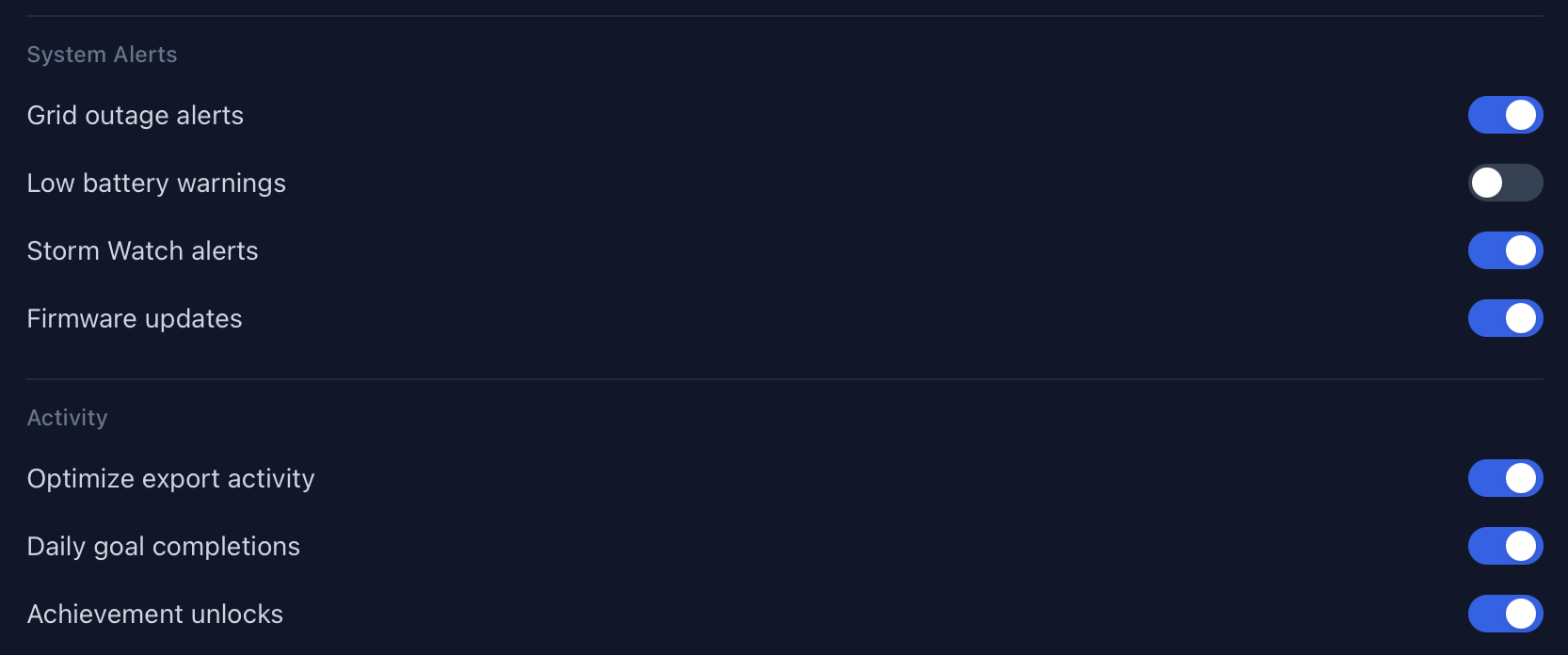
Types of Notifications
| Type | Channels | Trigger | Notes |
|---|---|---|---|
| Grid outage | Email + iOS push | Grid disconnects | Max 1/hour |
| Grid restored | Email + iOS push | Grid reconnects | Max 1/hour |
| Low battery | Email + iOS push | SOC drops below threshold | Max 1/hour; threshold configurable |
| GridMind Optimize started | iOS push | Peak window begins | Per event |
| GridMind Optimize complete | iOS push | Peak window ends | Per event |
| VPP event started | iOS push | VPP window begins | Per event |
| Storm Watch activated | Email + iOS push | Severe weather detected | Per event |
| Trial ending | 3 days before Pro trial expires | Once |
Email Notifications
Email notifications are enabled by default for your registered email address. You receive HTML-formatted emails with system details including battery level, solar output, and a direct link to your GridMind dashboard.
Configure which alert types you receive in Settings → Notifications. You can enable or disable individual event types independently.
iOS Push Notifications
iOS push notifications are delivered via APNs (Apple Push Notification service) for low-latency, reliable delivery — even when the GridMind app is not running.
Setup
- Install the GridMind iOS app
- On first launch, allow notification permissions when prompted
- Enable specific notification types in Settings → Notifications in the app
What iOS notifications include
- Alert sound
- Notification badge on the app icon
- Lock screen preview with key metrics
- Tap to open the relevant page in GridMind
iOS push notifications require the GridMind iOS app and iOS 16 or later. The app does not need to be open or running to receive notifications.
Webhook Integration
Send energy event data to any HTTP endpoint — ideal for Slack, Discord, home automation systems (Home Assistant, n8n), or custom alerting pipelines. Webhooks fire for every notification event type.
Setup
- Go to Settings → Notifications → Webhook URL
- Paste your webhook URL
- Click “Test Webhook” to send a test payload
- Save
Webhook Payload Format
GridMind sends an HTTP POST with a JSON body to your webhook URL:
{
"event": "grid_outage",
"system_id": "sys_abc123",
"system_name": "My Home",
"timestamp": "2026-03-15T18:30:00Z",
"data": {
  "battery_soc": 45,
  "solar_output_kw": 2.3,
  "battery_reserve": 20
}
}
Slack Integration
- Go to api.slack.com/apps → Create New App → Incoming Webhooks
- Activate incoming webhooks and add to a channel
- Copy the webhook URL
- Paste into GridMind Settings → Webhook URL
Discord Integration
- Go to your Discord server → Channel Settings → Integrations → Webhooks
- Create a new webhook and copy the URL
- Append
/slackto the Discord webhook URL (Discord supports Slack-compatible format) - Paste into GridMind Settings → Webhook URL
Use the “Test Webhook” button after saving to verify your endpoint is receiving events correctly before relying on it for alerts.
Rate Limiting
GridMind limits notifications to prevent alert fatigue during extended outages or repeated threshold crossings:
- Maximum 1 email per alert type per hour per system
- iOS push notifications follow the same limit
- VPP and Optimize notifications are per-event and are not rate-limited