iOS App
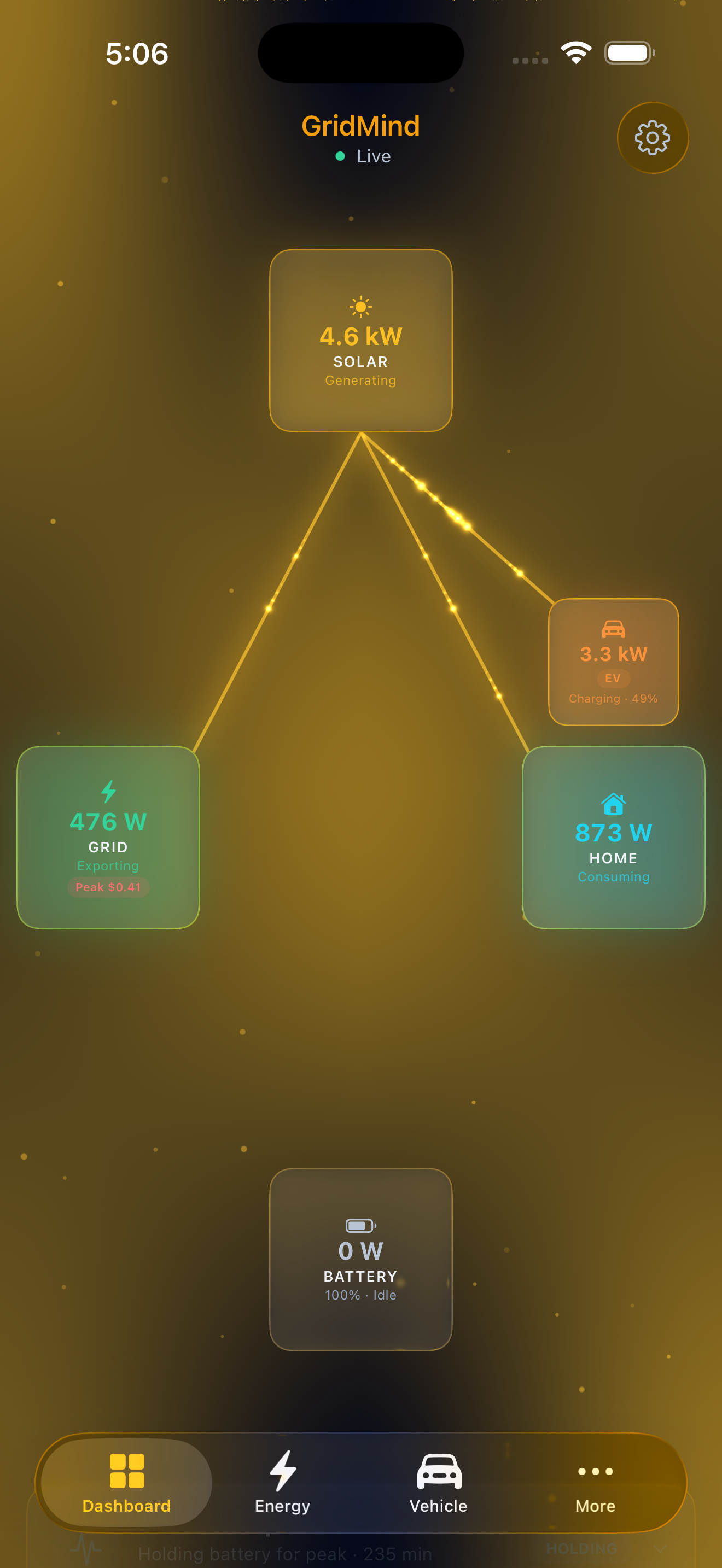
The GridMind iOS app brings your full energy dashboard to your iPhone — with real-time monitoring, charge controls, and push notifications. Built natively in SwiftUI, it delivers a fast, fluid experience optimized for the iPhone screen.
Requirements
- iPhone with iOS 16.0 or later
- A GridMind account (Free or Pro)
- Internet connection (Wi-Fi or cellular)
Download
GridMind Power is available on the App Store. Download GridMind Power for iPhone.
Features
The iOS app has full feature parity with the web dashboard:
- Real-time power flow dashboard
- Solar, battery, grid, home, and vehicle monitoring
- EV charge controls (start, stop, set limit)
- Multi-vehicle management with cross-vendor support Pro
- Multi-site management — up to 3 locations Pro
- Automation rules management
- GridMind Optimize status
- VPP event monitoring
- AI Insights Pro
- Value & financial tracking
- Achievements
- History charts
- Notifications & settings
Authentication
Login
Enter your GridMind email and password to sign in. Your session remains active until you explicitly sign out.
Face ID / Touch ID
After your first login, GridMind automatically prompts you to enable biometric authentication. Once enabled:
- The app locks after 5 minutes in the background
- Unlock with Face ID or Touch ID — no password required
- You can disable biometric auth in app Settings → Appearance & Security
Keychain Security
Your credentials are stored in the iOS Keychain — encrypted at rest and accessible only to the GridMind app. GridMind never stores your password in plain text.
Appearance
Choose between three appearance modes in Settings:
- Light: White backgrounds, dark text
- Dark: GridMind’s signature dark navy theme (matches the web app)
- System: Automatically follows your iPhone’s Light/Dark Mode setting
Push Notifications
GridMind sends iOS push notifications via Apple Push Notification service (APNs) for:
- Grid outage detection
- Low battery alerts
- GridMind Optimize activity Pro
- VPP event notifications
Notification permissions are requested on first launch. You can adjust permissions later in iPhone Settings → Notifications → GridMind.
Tapping a notification opens GridMind directly to the relevant page.
Dashboard Colors
Every energy source has a consistent color across the entire app — once you learn the colors, you can read the dashboard at a glance:
| Color | Source | Where You’ll See It |
|---|---|---|
| ● Amber | Solar | Solar tile, flow lines from solar, chart fills, solar miles |
| ● Blue | Battery | Battery gauge ring, battery flow lines, charge/discharge indicators |
| ● Red | Grid import | Grid tile when importing, flow lines from grid, cost indicators |
| ● Green | Grid export | Grid tile when exporting, export flow lines, revenue indicators |
| ● Cyan | Home | Home consumption tile, home flow lines |
| ● Orange | EV charging | Vehicle tile, EV flow lines, charge limit slider |
| ● Violet | UPS / backup | UPS tiles, UPS discharge flow lines |
In Light Mode, the same colors are used at slightly higher saturation for better contrast against the white background. All colors adapt automatically when you switch appearance modes.
Power Flow Animations
The heart of the iOS dashboard is an animated power flow diagram rendered using Metal (GPU-accelerated) for smooth 60fps performance. Glowing particles travel along flow lines between energy nodes to show the direction energy is moving in real time.
Flow Nodes
Five primary nodes are arranged around the dashboard:
- Solar — top center, showing current generation in kW
- Grid — left side, showing import or export in kW
- Home — right side, showing total household consumption in kW
- Battery — bottom center, showing charge level and current rate in kW
- Vehicle(s) — stacked above the Home node when plugged in, one tile per EV (up to 4)
Particle Behavior
The animated particles flowing between nodes convey real information about your energy system:
- Color — particles match the source color (amber for solar, red for grid import, blue for battery, etc.), so you can instantly tell where the energy is coming from
- Particle count — scales with power level. A trickle of solar produces just a few particles; a 10kW charge session produces a dense stream. The count scales up to 25 particles per flow path
- Speed — particles move faster at higher power levels, giving you an intuitive sense of how much energy is moving
- Size — each particle’s size scales with amperage, ranging from small dots at low power to larger glowing orbs at high power
- Glow effect — in Dark Mode, particles use an additive glow with a soft halo around each dot. In Light Mode, particles are rendered as solid colored dots for better visibility against the light background
- Trails — each particle has a fading trail of three dots behind it, creating a sense of motion and direction
Active Flow Lines
Flow lines only appear when there is meaningful power moving (above 50 watts) between two nodes. Common flows include:
- Solar → Home — solar panels powering your home directly
- Solar → Battery — excess solar charging the battery
- Solar → Grid — exporting surplus solar to the utility
- Grid → Home — importing grid power to cover consumption
- Battery → Home — battery discharging to power the home
- Battery → Grid — battery exporting to the grid (during peak TOU or VPP events)
- Solar/Grid/Battery → Vehicle — EV charging, with particles colored by the proportional energy source
When a flow drops to zero, the particles fade out and the line disappears entirely — so you only see what is actively happening.
Ambient Effects
Pro users see an additional ambient particle effect behind the power flow diagram. The ambient particles and background mesh gradient are colored to match the dominant energy source (solar, grid, or battery) and their intensity scales with total power flowing through the system — subtle at low power, more vivid during high-output periods. These effects can be toggled off in Settings → Appearance & Security.
All particle animations are rendered in a single GPU pass using Metal shaders for minimal battery impact. If you have Reduce Motion enabled in iOS accessibility settings, particle animations are automatically disabled.
Battery Gauge
The battery gauge at the center of the diagram shows:
- Fill level — visually represents the state of charge from 0 to 100%
- Reserve band — a distinct section at the bottom showing your configured backup reserve level
- Color ring — green when charging, amber when discharging, gray when idle
- Liquid fill animation — Pro users see a fluid Metal shader animation inside the gauge; free users see a clean static fill
Real-Time Data
The app connects via WebSocket for live data updates. Data refresh behavior:
- WebSocket active: Updates arrive in real time (sub-second latency)
- WebSocket unavailable: Automatic fallback to polling every 30 seconds
When opening the app, the last known data loads instantly from cache while the WebSocket reconnects — so you see data immediately, even on a slow connection.
Multi-Site Support Pro
Pro users can manage up to three energy systems across different locations — for example, a primary home and a vacation cabin. Each site has independent vendor connections, automations, optimizer settings, timezone, and energy provider.
Site Picker
When you have more than one site, a site name button appears in the top-left toolbar. Tap it to open the site picker sheet, which shows:
- All enrolled sites with vendor icon and address
- A checkmark next to the currently active site
- An Add Site button to enroll a new location (up to 3 total)
Tap any site to switch instantly — the dashboard, WebSocket connection, and all data reload for that site. Your selection is remembered across app launches.
Managing Sites
In Settings, a Sites section lists all your systems. Tap any site to switch to it or navigate to its Manage System page to edit its name, timezone, connections, and other settings independently.
Known Differences vs. Web App
- The admin panel (internal only) is not available in the iOS app
- Some configuration workflows — such as Tesla Fleet API key setup — are easier on the web app’s larger screen. Do initial setup on web, then use the iOS app for daily monitoring
The iOS app is actively developed and reaches feature parity with each web release. Check the changelog for the latest iOS additions.