AI Insights Pro
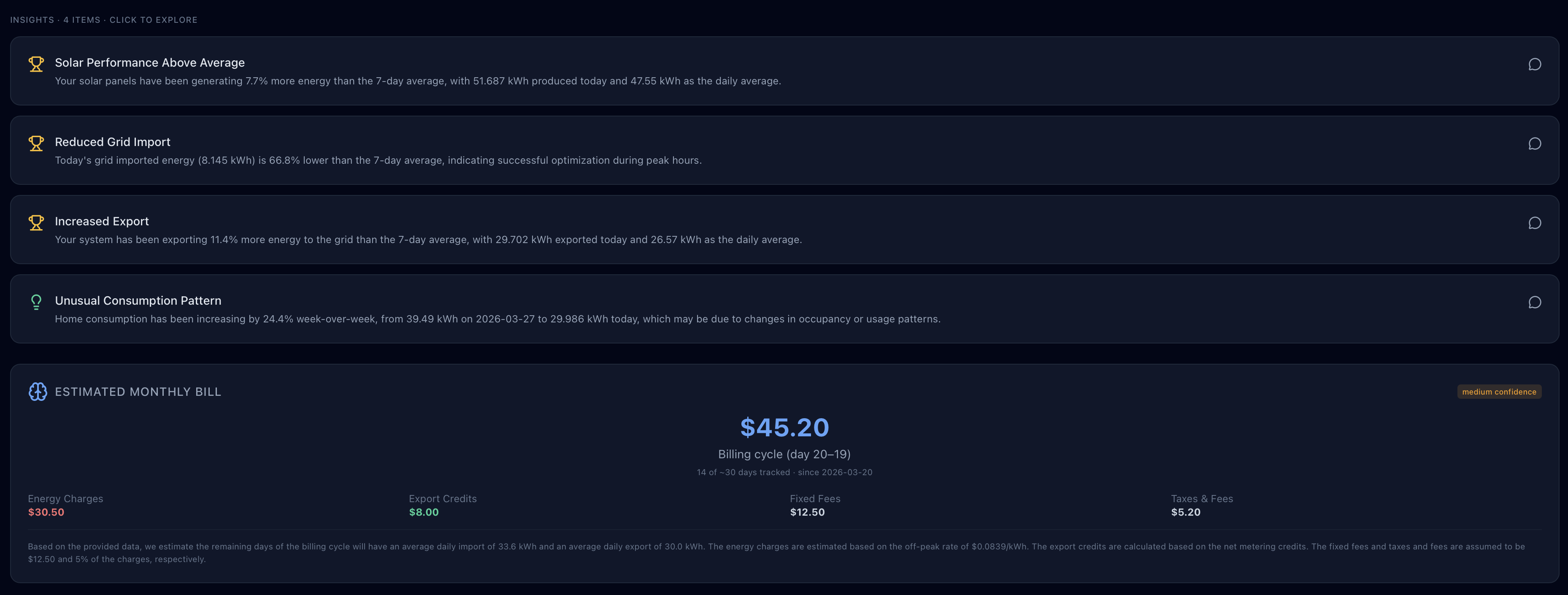
AI Insights is GridMind’s built-in energy analyst — it reviews your 7-day energy history and surfaces specific observations, detects genuine anomalies, and estimates your monthly utility bill.
AI Insights requires a Pro subscription and your own AI provider API key (free tiers available). Upgrade to Pro →
What AI Insights Provides
Energy Observations
Each analysis session produces 3–5 specific, data-driven observations about your energy patterns. These are not generic tips — they reference your actual numbers:
“Your average daily solar generation this week was 18.4 kWh, but Wednesday’s output was only 9.2 kWh — 50% below your 7-day average. Overcast skies were forecast, so this aligns with weather patterns rather than a panel issue."
"You exported 42% of your solar generation to the grid this week. Your current NEM export rate ($0.10/kWh) is significantly lower than your import rate ($0.32/kWh). GridMind Optimize could shift this export to peak hours at $0.56/kWh."
"Your home load between 6 PM and 9 PM averages 4.2 kW — higher than the 3.1 kW average for the rest of the day. This peak likely comes from HVAC, cooking, and lighting. This coincides with your utility’s peak TOU window.”
Anomaly Detection
AI Insights specifically looks for genuine problems that warrant your attention — not normal energy patterns. Flagged anomalies include:
- Sudden drop in solar output not explained by weather
- Unusual overnight home load (possible appliance left on or malfunction)
- Battery not charging to expected level despite solar availability
- Vehicle charging more slowly than expected (possible cable or charger issue)
- Export rate mismatch (exporting energy when you should be storing it)
Anomaly detection is designed to flag real issues, not alert you to normal variation. If you see an alert, it’s worth investigating — but it may still have a benign explanation.
Monthly Bill Estimate
AI Insights calculates an estimated monthly utility bill based on your actual energy data and configured TOU rates:
- Energy charges: Calculated from hourly import data × applicable TOU rate
- Export credits: Calculated from hourly export data × NEM/export rate
- Fixed charges: Configurable monthly base charge (e.g., $10/month meter fee)
- Tax estimate: Configurable state/local utility tax rate
- Net estimated bill: Charges minus credits
The bill estimate is an approximation based on data GridMind has collected. It does not account for demand charges, tiered rate structures, or utility-specific adjustments. Always verify with your actual utility bill.
Supported AI Providers
AI Insights supports three AI providers. You bring your own API key:
| Provider | Cost | Setup | Notes |
|---|---|---|---|
| Google Gemini | Free tier available (generous) | Create key at aistudio.google.com | Recommended for most users |
| Groq | Free tier available (fast inference) | Create key at console.groq.com | Very fast response times |
| OpenAI (GPT-4o) | Paid (~$0.01 per analysis) | Create key at platform.openai.com | Most capable but costs money |
Setting Up AI Insights
- Go to Settings → AI Insights
- Select your preferred AI provider
- Paste your API key
- Click Save
- Return to the AI Insights page and click Generate Insights
Google Gemini’s free tier supports approximately 1,500 requests/day — far more than you’ll ever need for daily energy analysis.
Using AI Insights
Generating Insights
Click Generate Insights (or Refresh) to analyze the past 7 days of data. The analysis takes 10–30 seconds and streams in as it generates.
Interactive Follow-up Questions
After your initial analysis, ask follow-up questions in the text box:
- “How can I reduce my peak-hour grid imports?"
- "Is my battery degrading faster than normal?"
- "What would my bill be if I enabled Optimize?"
- "Why did my solar production drop last Tuesday?”
Responses stream in real time. The AI has full context of your 7-day energy data.
When to Refresh
There’s no automatic refresh — you control when insights are generated. Consider refreshing:
- Once a week for regular monitoring
- After making a major configuration change
- After seeing an unexpected bill
- When you notice something unusual on the dashboard