Tesla Integration
GridMind’s Tesla integration provides the deepest functionality of any integration — real-time battery control, solar monitoring, multi-vehicle management, and Wall Connector data. It uses the official Tesla Fleet API for all communication.
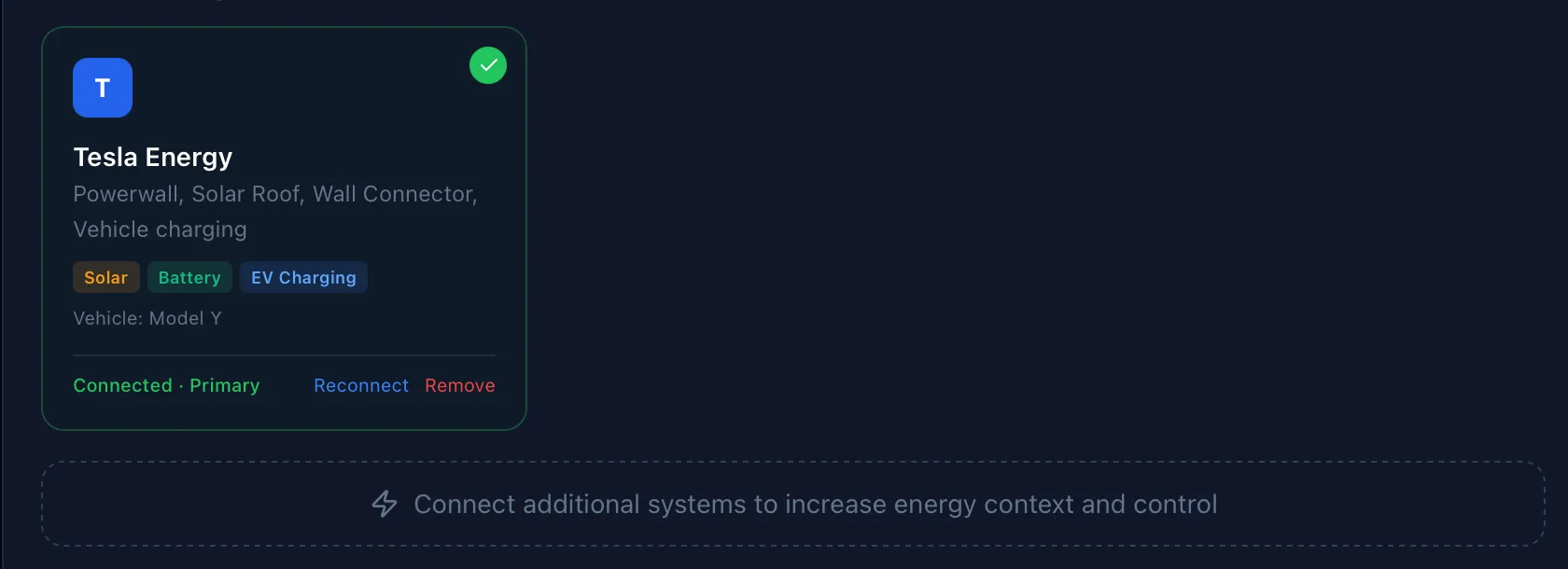
Supported Hardware
Energy Systems
- Powerwall 2 (13.5 kWh)
- Powerwall 3 (13.5 kWh)
- Powerwall+ (solar gateway included)
- Solar Roof (Powerwall integrated)
- Any Tesla solar installation with a Gateway
Vehicles
- Model S, Model 3, Model X, Model Y (all variants)
- Cybertruck
- Roadster is not supported via Fleet API
Charging
- Tesla Wall Connector (Gen 2, Gen 3)
- Tesla Universal Wall Connector
Prerequisites
Before connecting to GridMind, you need:
- A Tesla account with your Powerwall/solar registered
- Access to the Tesla Fleet API (requires a developer application — see setup below)
- A public/private key pair for vehicle command security
Tesla Fleet API access requires creating a developer application at developer.tesla.com. This is a one-time setup that takes about 15 minutes.
Setup: Step by Step
Step 1: Create a Tesla Fleet API Application
- Go to developer.tesla.com and sign in with your Tesla account
- Click “Create Application”
- Fill in application details: name “GridMind”, grant type “Authorization Code and Machine-to-Machine”, redirect URI
https://app.gridmindpower.com/oauth/tesla/callback, allowed originhttps://app.gridmindpower.com - Note your Client ID and Client Secret — you’ll need these in Step 4
Step 2: Generate a Key Pair
GridMind requires a public/private key pair for Tesla’s vehicle command security protocol. Generate keys using OpenSSL:
openssl ecparam -name prime256v1 -genkey -noout -out private_key.pem
openssl ec -in private_key.pem -pubout -out public_key.pem
cat public_key.pem
Copy the contents of public_key.pem — you’ll register this with Tesla in the next step.
Step 3: Register Your Public Key with Tesla
- Go to your Tesla Fleet API application settings at developer.tesla.com
- Under “Public Key”, paste the contents of your
public_key.pem - Tesla will verify and register the key
Step 4: Enter Credentials in GridMind
- In GridMind, go to Settings → Tesla Credentials
- Enter your Client ID from Step 1
- Enter your Client Secret from Step 1
- Paste your Public Key (contents of
public_key.pem) from Step 2 - Click Save
Step 5: Authorize GridMind with Tesla OAuth
- Go to Settings → System Management → Add Connection → Tesla
- Click “Connect with Tesla”
- You’ll be redirected to Tesla’s login page — sign in with the Tesla account that owns your Powerwall
- Approve GridMind’s requested permissions
- You’ll be redirected back to GridMind
Step 6: Discover Your Site
- Click “Discover Site” in Settings → System Management
- GridMind queries the Tesla API to find your Powerwall site ID
- Your site is automatically saved — data collection begins immediately
Step 7: Add Vehicles (Optional)
- Go to Settings → System Management → Add Connection → Tesla Vehicle
- Select the vehicle(s) you want to monitor
- Your vehicles will appear on the Vehicle page and power flow diagram
What GridMind Can Do with Tesla
| Capability | Available | Notes |
|---|---|---|
| Real-time solar output | ✓ | kW, live |
| Real-time battery SOC | ✓ | %, live |
| Real-time grid import/export | ✓ | kW, live |
| Set backup reserve | ✓ | 0–100% |
| Change operation mode | ✓ | Self-powered / Time-Based |
| Vehicle SOC | ✓ | Doesn’t wake vehicle |
| Vehicle charge start/stop | ✓ | Wakes vehicle |
| Set charge limit | ✓ | 0–100% |
| Wall Connector status | ✓ | No wake needed |
| Charge session history | ✓ | From Wall Connector logs |
Rate Limits & Best Practices
Tesla Fleet API has strict rate limits that GridMind manages automatically:
- Data requests: 60/minute per vehicle
- Commands: 30/minute per vehicle
- Account-level: 20 auth requests/second
GridMind uses smart polling intervals to stay well within limits:
- Live energy data: every 60 seconds
- Vehicle data: every 120 seconds when charging, 600 seconds when parked, 3,600 seconds when asleep
- Vehicle wake commands are rate-limited to avoid excessive battery drain
Troubleshooting
403 EXCEEDED_LIMIT error: Your Tesla account has been temporarily rate-limited by Tesla. This typically recovers within 24 hours. GridMind implements a 1-hour local cooldown when this occurs to avoid repeated failures.
Vehicle not showing data: The vehicle may be asleep. Use the Wake button on the Vehicle page. GridMind won’t wake vehicles automatically to avoid unnecessary battery drain.
”Site not found” after Discover: Ensure your Tesla account is the primary account on the Powerwall (not a shared user). Gateway firmware may need to be up to date.
”Unable to reach your Tesla account” banner
This banner means GridMind’s server-side connection to Tesla has been interrupted. Because GridMind monitors your system in the background 24/7 — even when your phone is off — it holds a Tesla OAuth token on your behalf on the server. If Tesla invalidates that token, there’s no way to recover silently: you need to re-authenticate to issue a fresh one.
Common causes:
- You changed your Tesla account password (Tesla immediately invalidates all third-party tokens)
- Tesla rotated your tokens after a new device sign-in or account security event
- You revoked third-party app access in your Tesla account settings
- A brief Tesla auth server outage prevented background token refresh
What to do: Tap the banner and sign in with Tesla again. It takes about 30 seconds and doesn’t affect your settings, history, or automation rules.
This is a Tesla platform limitation, not a GridMind bug. Tesla can revoke third-party tokens at any time without notice. Apps that use the local Powerwall API (on your home network only) don’t have this issue because they don’t use Tesla’s cloud OAuth — but they also can’t monitor your system remotely or run automations while you’re away.