Automation Rules
Automation rules let you define exactly how your energy system behaves in response to conditions like battery level, solar production, grid power, and grid energy mix — without manual intervention. Rules run continuously in the cloud and fire even when the GridMind app is closed.
Pro Automation rules require a Pro plan. Rules are evaluated every minute and run in the cloud even when the GridMind app is closed.
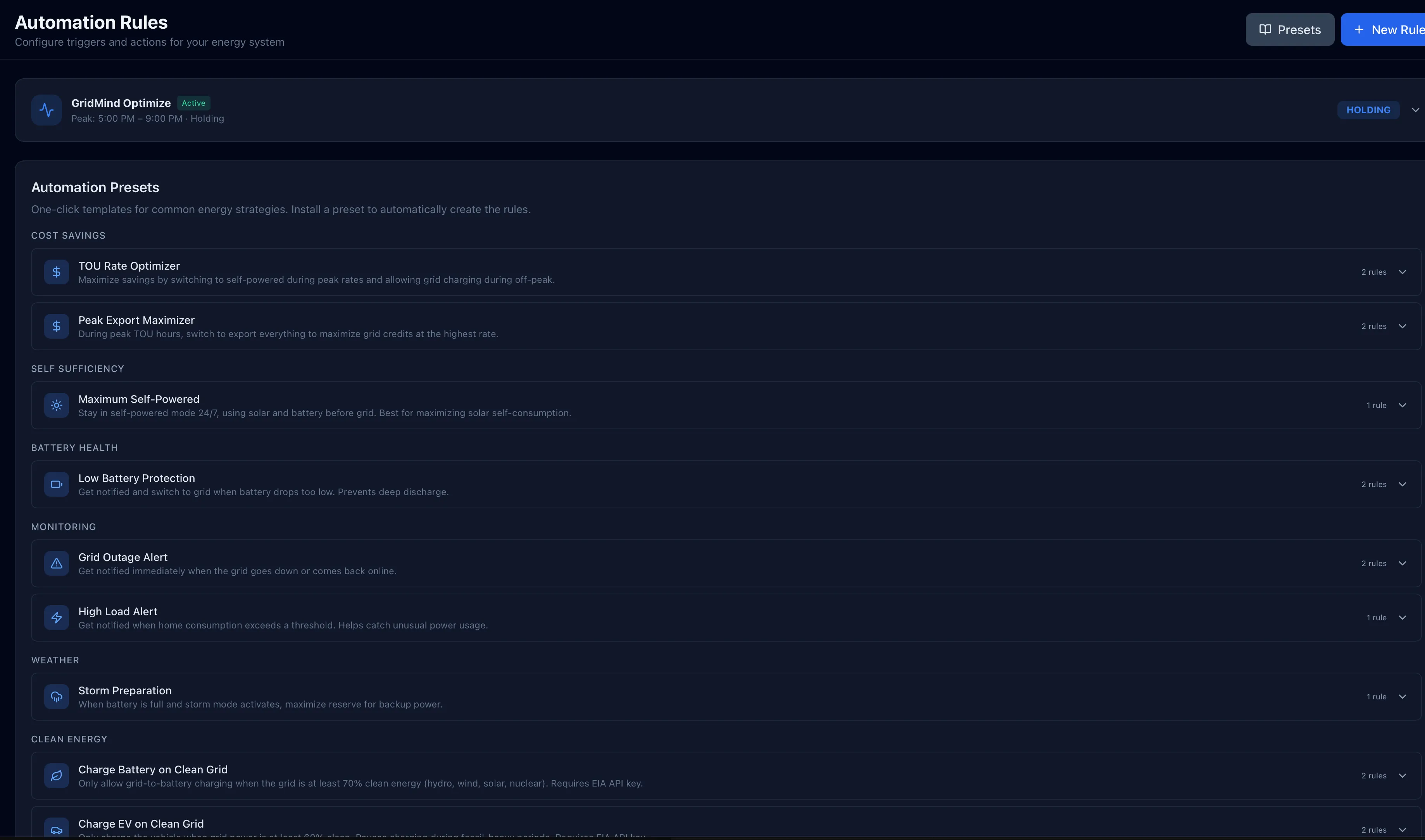
How Rules Work
Each rule consists of three parts:
- Trigger — The event or condition that starts evaluation (for example, “Battery SOC drops below 30%“)
- Condition (optional) — An additional filter that must also be true at the time the trigger fires (for example, “Time is between 2 PM and 5 PM”)
- Action — What GridMind does when the trigger fires and all conditions pass (for example, “Send a notification”)
Rules are evaluated continuously. When a trigger condition becomes true and all optional conditions pass, the action executes immediately. Each rule execution is logged so you can verify your rules are working as expected.
To prevent rapid-fire triggering, each rule has a 2-minute cooldown after it fires — it won’t execute again until 2 minutes have passed. This prevents a single condition from repeatedly executing the same action.
Preset Templates
GridMind includes 10 ready-to-use preset templates. Click any preset to create a pre-configured rule that you can customize before saving. Presets are a great starting point — they’re built around the most common automation use cases GridMind users set up.
1. Solar Surplus Charging
Purpose: Use excess solar generation to charge your EV instead of exporting it to the grid at a low rate.
- Trigger: Solar export > 2.0 kW
- Action: Start vehicle charging
- Best for: Maximizing solar self-consumption and earning solar miles on your EV instead of a small NEM credit.
Example customization:
Trigger: Solar export > 1.5 kW (lower threshold for smaller solar systems)
Condition: Vehicle SOC < 80% (don’t charge if already nearly full)
Action: Start charging
2. TOU Peak Preparation
Purpose: Adjust battery reserve ahead of peak hours to maximize export earnings.
- Trigger: Time of day (e.g., 4:00 PM)
- Action: Set backup reserve to 5%
- Note: GridMind Optimize handles this automatically. This rule is useful for custom peak-time strategies beyond what Optimize offers.
3. Low Battery Alert
Purpose: Get notified when your battery is critically low so you can take action before losing backup coverage.
- Trigger: Battery SOC drops below 15%
- Condition: Grid is connected (not a backup event)
- Action: Send email notification
- Customization tip: Lower the threshold if you have a larger battery and want more warning time before the backup reserve is threatened.
4. Storm Watch Manual
Purpose: Charge battery to 100% when a storm is approaching, ensuring maximum backup coverage.
- Trigger: Weather alert detected (severe thunderstorm, hurricane)
- Action: Set backup reserve to 100%
- Note: GridMind does this automatically via the built-in Storm Watch feature. Use this rule only if you want additional custom behavior on top of the automatic Storm Watch response.
5. Grid Export Pause
Purpose: Pause grid export when export rates drop below a threshold, avoiding exporting at a loss.
- Trigger: Grid export rate < $0.05/kWh
- Action: Set operation mode to Self-Powered (stops export)
- Best for: Areas with volatile or time-varying NEM export rates where exporting at certain hours provides little or no value.
6. Vehicle Departure Charge
Purpose: Ensure your vehicle is charged to a target level overnight during off-peak hours.
- Trigger: Daily at 11:00 PM (start of off-peak)
- Condition: Vehicle SOC < 80%
- Action: Start vehicle charging + Set charge limit to 80%
- Note: The Departure Planner charge schedule in Vehicle settings is a smarter alternative for this use case, as it accounts for departure time and existing SOC automatically.
7. VPP Event Response
Purpose: Maximize export during a Virtual Power Plant event by switching to aggressive discharge mode.
- Trigger: VPP event starts
- Action: Set backup reserve to 5% + Set operation mode to Time-Based Control
- Note: GridMind handles this automatically when you create a VPP event. Use this rule for custom VPP-like behavior for events not registered directly in the VPP module.
Building a Custom Rule
To create a rule from scratch rather than starting from a preset:
- Click New Rule on the Automation page
- Select a Trigger from the list and configure its parameters (threshold value, direction, etc.)
- Optionally click Add Condition to add a secondary filter
- Select an Action and configure its parameters
- Give the rule a descriptive name so you can identify it in the execution log
- Click Save
The rule activates immediately after saving. You can toggle it off without deleting it if you want to pause it temporarily.
Trigger Types
GridMind provides 9 trigger types covering battery state, power flows, grid status, and grid energy mix:
| Trigger | Description | Example |
|---|---|---|
| Time of day | Fires at a specific time, optionally on selected days | Every weekday at 10:00 PM |
| Battery SOC | Fires when battery level crosses a threshold | Battery drops below 20% |
| Solar output | Fires when solar generation is above or below a threshold | Solar exceeds 4 kW |
| Home load | Fires when home consumption crosses a threshold | Load exceeds 5 kW |
| Grid power | Fires when net grid power crosses a threshold (+ import, − export) | Exporting more than 2 kW |
| Battery power | Fires when battery charge/discharge power crosses threshold | Battery discharging above 3 kW |
| Grid status | Fires when grid connection state changes | Grid goes offline (islanded) |
| Grid clean % | Fires when clean energy % in local grid mix crosses threshold | Grid is >70% renewable |
| Grid fossil % | Fires when fossil fuel % in local grid mix crosses threshold | Grid is >50% fossil |
Action Types
Nine action types let you control your battery, manage EV charging, and send alerts:
| Action | Description |
|---|---|
| Set operation mode | Switch between Self-Powered and Time-Based Control |
| Set backup reserve | Change the minimum battery reserve percentage (0–100%) |
| Enable/disable storm mode | Turn Storm Watch on or off |
| Enable/disable grid charging | Allow or block the battery from charging from the grid |
| Set export rule | Control what the battery exports: Solar Only, Battery OK, or Never |
| Start EV charging | Begin charging a connected vehicle |
| Stop EV charging | Pause vehicle charging |
| Set EV charge amps | Set the charge current in amps (1–32 amps, Tesla only) |
| Send notification | Send a push notification to your iPhone |
Rule Execution Log
Every time a rule fires, GridMind logs the execution so you can verify rules are working and diagnose unexpected behavior. Each log entry includes:
- Timestamp — Exact time the rule fired
- Rule name — Which rule was triggered
- Trigger value — The specific value that caused the trigger to fire (e.g., “Battery SOC: 18%“)
- Action taken — What GridMind did in response
- Result — Whether the action succeeded or failed, with an error message if it failed
Click any rule on the Automation page to view its individual execution history.
Rule Enable/Disable
Toggle any rule on or off without deleting it using the switch next to the rule name. Disabled rules appear grayed out in the list and will not fire under any conditions. This is useful for rules that are seasonal or that you want to pause temporarily while you adjust your energy strategy.
Start with one or two rules and monitor their execution log before adding more. Complex rule interactions — such as two rules that modify the same setting in opposite directions — can sometimes produce unexpected behavior that is easier to diagnose when you add rules incrementally.